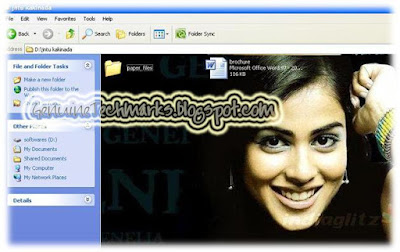
Hide system clock from toolbar in XP

System clock can be hide easily in the toolbar.This is a simple trick to hide the system clock in the notification area(known as system tray) in the toolbar.


Follow the steps ..

+ Open run -> regedit

+ Navigate to the path :

HKEY_LOCAL_MACHINE\Software\Microsoft\Windows\CurrentVersion \Policies

+ Here under policies, if Explorer key is created default, then click on it.If it is not present by default, click policies and in the right box, right click -> new key and give the name Explorer for it.Now click on the Explorer.

+ Now in the right box,right click -> new DWORD value and give it the name HideClock.

+ Right click on Hideclock and click modify.Enter the value as 1 and click OK.

+ Restart the sytem and it is DONE ... !!

Share your experiences in the comments ..

XP hacks - Click here to see all the XP hacks

Set background picture for any folder in XP without any software


Previously I had written
a post about how to


In the above article we can change the background picture only for drives but not the folders.

But, this can be done with a simple notepad trick.

+ Open notepad and copy the following code in it.

[ExtShellFolderViews]
{BE098140-A513-11D0-A3A4-00C04FD706EC}={BE098140-A513-11D0-A3A4-00C04FD706EC}
[{BE098140-A513-11D0-A3A4-00C04FD706EC}]
IconArea_Image=F:\Celebs\hasini.jpg
iconarea_text= 0x00FFFFFF


+ Here IconArea_Image represents the path of your picture and iconarea_text represents the color of the text.

+ In the iconarea_text the last 6 letters ( 0x00FFFFFF ) represents the color code.

You can get all the color codes here ->
+ Now save the notepad file in the folder where you need the background picture and the notepad should be saved as DESKTOP.INI


+ Now change the icon of that folder by right click on it and click properties.Then go to customize tab and click change icon.Here change the icon of your wish.

+ Click ok and close.

Now you can see the selected picture as background in the folder.

Want to express something .. !! Share here in the comments ..

XP hacks - Click here to see all the XP hacks

Change the thumbnail size of photos in XP without any software

Wanna change the thumbnail view size of your photos in XP .. !! This can be done by a simple registry trick without any software.


Follow the steps here to change the size :

+ Open run -> regedit

+ In registry navigate to :

HKEY_CURRENT_USER\ Software\ Microsoft \ Windows\ CurrentVersion\ Explorer


+ In the right side box, right click -> new -> DWORD Value

+ Give it the name ThumbnailSize

+ Right click on ThumbnailSize and click modify.

+ Now change the value data to any number between 20 to 100 (in hexadecimal) or between 32 to 256 (in decimal).

Done .. !! Your thumbnail size will change as your desired size.

Normal thumbnail view size :


When value is changed to 32(in decimal) :


When value is changed to 144(in decimal) :


When value is changed to 256(in decimal) :

Like it .. !! Share your experiences in the comments .. ENJOY .. !!

XP hacks - Click here to see all the XP hacks